# Using ONE store IAP (SDK V21) from Unity

## Overview

The ONE store purchase plugin extends assets to the Unity environment to provide the latest features of the ONE store purchase library in games. This guide explains how to set up the project to use the plugin and how to implement features of the ONE store purchase library.

### Development Version

<table data-view="cards"><thead><tr><th></th><th></th></tr></thead><tbody><tr><td><strong>Unity</strong></td><td>2022.3.62f3</td></tr><tr><td><strong>Java SDK (Java 11)</strong></td><td><p>Purchase: v21.04.00</p><p>App License Checker: v2.2.1</p></td></tr></tbody></table>

## Setting up ONE store Purchase Plugin

### Downloading and Importing Plugin

1. Download latest version of the ONE store In-app purchase plugin for Unity from the release page on GitHub.
2. In the Unity menu bar, click **Assets > Import Package > Custom Package**.<br>

   <figure><img src="https://2218522982-files.gitbook.io/~/files/v0/b/gitbook-x-prod.appspot.com/o/spaces%2FgStyyzRzNh9x2u93ZH03%2Fuploads%2FPvUHqvB7dMdjuDM9aSfS%2Fimage.png?alt=media&#x26;token=f334b4b4-9f04-4871-bc94-02a4e8879812" alt=""><figcaption></figcaption></figure>
3. Navigate to the location of download and select the .unitypackage file.
4. In the **Import Unity Package** dialog, keep all assets selected and click **Import**.

After importing the package, a folder will be added. This folder contains the ONE store purchase library.

* Assets/OneStoreCorpPlugins
  * /Common
  * /Authentication
  * /Purchase
  * /AppLicenseChecker

[EDM4U (External Dependency Manager for Unity)](https://github.com/googlesamples/unity-jar-resolver) is distributed alongside it. \
If you are already using it, you can uncheck `ExternalDependencyManager` during the `Import Package` step and apply it.

### Including External Dependencies

To include repositories and dependencies in your project, follow these steps:

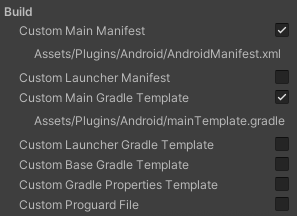
**`Project Settings > Player > Publishing Settings > Build`**

Check the following two options:

* Custom Main Manifest
* Custom Main Gradle Template<br>

  <figure><img src="https://2218522982-files.gitbook.io/~/files/v0/b/gitbook-x-prod.appspot.com/o/spaces%2FgStyyzRzNh9x2u93ZH03%2Fuploads%2FZGHCCDStesHt4ro00nDh%2Fimage.png?alt=media&#x26;token=309eff29-e3f5-4527-b6b5-ffdd0ffbda1b" alt=""><figcaption></figcaption></figure>

Select **`Assets > External Dependency Manager > Android Resolver > Force Resolve`**.

You can see the following applied in the `mainTemplete.gradle` file:<br>

<figure><img src="https://2218522982-files.gitbook.io/~/files/v0/b/gitbook-x-prod.appspot.com/o/spaces%2FgStyyzRzNh9x2u93ZH03%2Fuploads%2FFotvzNZDmg3MH2z9v8Ma%2Fimage.png?alt=media&#x26;token=5d802f02-e9af-4844-ac72-caac9e858bf2" alt=""><figcaption></figcaption></figure>

{% hint style="info" %}

* **In-app Purchase dependencies** are listed here:\
  Assets/OneStoreCorpPlugins/Purchase/Editor/PurchaseDependencies.xml
* **App License Checker dependencies** are listed here:\
  Assets/OneStoreCorpPlugins/AppLicenseChecker/Editor/AppLicenseCheckerDependencies.xml
  {% endhint %}

### \<queries> Setting

You must set the `<queries>` in your `AndroidManifest.xml`  file. \
For details, refer to the notice.<br>

{% hint style="danger" %}
If you don’t set the **\<queries>** tag, the SDK won’t be able to find the ONE store service.
{% endhint %}

```xml
<manifest>
    <!-- 
        if your binary use ONE store's In-app SDK,
        Please make sure to declare the following query on Androidmanifest.xml. 
        Refer to the notice for more information.
        https://dev.onestore.net/devpoc/support/news/noticeView.omp?noticeId=32968
     -->
    <queries>
        <intent>
            <action android:name="com.onestore.ipc.iap.IapService.ACTION" />
        </intent>
        <intent>
            <action android:name="android.intent.action.VIEW" />
            <data android:scheme="onestore" />
        </intent>
    </queries>
    ...
    <application>
        ...
    </application>
</manifest>
```

### **Setting Developer Options for Store Selection**

#### **v21.04.00 Update - Added ONE Billing Lab Selection Feature**

you can designate the store app integrated with the SDK by setting the `android:value` of `onestore:dev_option` as follows:

```xml
<manifest>
    <application>
        <meta-data android:name="onestore:dev_option" android:value="onestore_01" />
    </application>
</manifest>
```

<table><thead><tr><th width="226">android:value</th><th>Target Countries and Regions</th></tr></thead><tbody><tr><td><code>onestore_00</code></td><td>South Korea <em>(default)</em></td></tr><tr><td><code>onestore_01</code></td><td>Singapore, Taiwan</td></tr><tr><td><code>onestore_02</code></td><td>United States</td></tr><tr><td><code>onestore_03</code></td><td>ONE Billing Lab</td></tr></tbody></table>

{% hint style="info" %}
**Version History**

* **v21.04.00** : Added ONE Billing Lab
* **v21.02.00** : With `android:value`, you can set South Korea, Singapore/Taiwan, and the United States.
* **v21.01.00** : With `android:value`, only global can be set, and only Singapore/Taiwan store apps can be specified.
  {% endhint %}

{% hint style="danger" %}
**Note:** Be sure to remove this option from the binary for distribution versions.
{% endhint %}

## Implementing the ONE store In-app Purchase Library in Games

### Setting the Log Level

During development, you can set the log level to expose the flow of data in the SDK in more detail.\
It operates based on values defined in [android.util.Log](https://developer.android.com/reference/android/util/Log#summary).

```csharp
using OneStore.Common;
/// <summary>
/// Warning! This code must be deleted during release build as it may be vulnerable to security.
/// Use <seealso cref="OneStoreLogger.SetLogLevel(int)"/> only for development.
/// </summary>
OneStoreLogger.SetLogLevel(2);
```

| Constants Value | Value |
| --------------- | ----- |
| VERBOSE         | 2     |
| DEBUG           | 3     |
| INFO (default)  | 4     |
| WARN            | 5     |
| ERROR           | 6     |

{% hint style="danger" %}
For the distribution build version, remove this option as it may be vulnerable.
{% endhint %}

### Initializing ONE store In-app Purchase

<figure><img src="https://2218522982-files.gitbook.io/~/files/v0/b/gitbook-x-prod.appspot.com/o/spaces%2FgStyyzRzNh9x2u93ZH03%2Fuploads%2FqAzdzp1gQGNKkIFw0uYS%2Fimage.png?alt=media&#x26;token=bddc855e-e19e-40aa-aa4b-4499caa4eaa5" alt=""><figcaption></figcaption></figure>

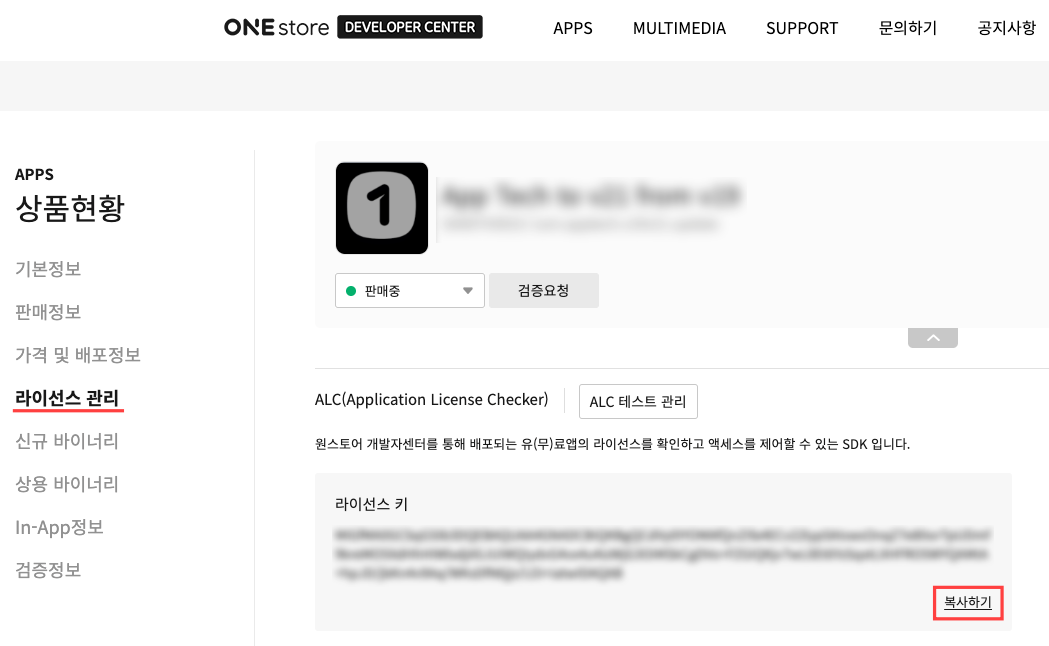
To request in-app purchases, initialize the `PurchaseClientImpl` object using the license key provided by the ONE store developer center.\
Call the `Initialize()` function to complete basic setup. This is a prerequisite for connecting to the ONE store service.

```csharp
using OneStore.Purchasing;

class YourCallback: IPurchaseCallback
{
    // IPurchaseCallback implementations.
}

var purchaseClient = new PurchaseClientImpl("your license key");
purchaseClient.Initialize(new YourCallback());
```

### Searching for Detailed Product Information

After initializing the `PurchaseClientImpl` object, request product information through `QueryProductDetails()` and receive a response at `PurchaseCallback.OnProductDetailsSucceeded()`.

`ProductType`is as follows:

<table><thead><tr><th width="246">Product</th><th>Enum</th></tr></thead><tbody><tr><td>Managed Product</td><td><code>ProductType.INAPP</code></td></tr><tr><td>Subscription Product</td><td><code>ProductType.SUBS</code></td></tr><tr><td>Monthly Subscription Product</td><td><del><code>ProductType.AUTO</code></del> (This product will not be supported in the future.)</td></tr></tbody></table>

To search for all types of data at once, set `ProductType.ALL`.

{% hint style="warning" %}
`ProductType.ALL` can only be used for searching detailed product information, not for initiating purchase requests or retrieving purchase history.
{% endhint %}

```csharp
using OneStore.Purchasing;
  
List items = ...
purchaseClient.QueryProductDetails(items.AsReadOnly(), [ProductType.ALL | ProductType.INAPP | ProductType.SUBS]);

// IPurchaseCallback implementations
public void OnProductDetailsSucceeded(List productDetails)
{
    ...
}

public void OnProductDetailsFailed(IapResult iapResult)
{
    ...
}
```

{% hint style="warning" %}
The list of in-app product IDs should be managed by the developer's secure backend server.
{% endhint %}

### Initiating Purchase Request

To make a purchase request in the app, call the `Purchase()` function on the main thread.

Create a PurchaseFlowParams object based on the values of the `ProductDetail` object obtained by calling the `QueryProductDetails()` API. \
Use the `PurchaseFlowParams.Builder` class to create a `PurchaseFlowParams` object.

`SetDeveloperPayload()` is an optional field with a maximum of 200 bytes, set by the developer. It can be used after payment to verify data integrity, and for additional data.\
`SetProductName()` is used to change and display the product name at the time of payment.\
`SetQuantity()` applies only to managed in-app products and is used when purchasing multiple units of a product.

{% hint style="success" %}
ONE store offers various reward promotions to users such as discount coupons, cashback, etc.\
Developers can restrict or allow user participation in promotions using `gameUserId` and `promotionApplicable` parameters during a purchase request.\
Developers pass their app's unique user identification number and the choice of promotion participation, and ONE store applies the user's promotional benefits based on these values.
{% endhint %}

{% hint style="warning" %}
`gameUserId` and `promotionApplicable` parameters are optional and should only be used after prior consultation with the ONE store business department. In general cases, these values are not sent.\
Even when sending values after consultation, the gameUserId should be sent as a hashed unique value for privacy reasons.
{% endhint %}

```csharp
  using OneStore.Purchasing;
  
  ProductDetail productDetail = ...
  ProductType productType = ProductType.Get(productDetail.type);

  var purchaseFlowParams = new PurchaseFlowParams.Builder()
          .SetProductId(productId)                // mandatory
          .SetProductType(productType)            // mandatory
          .SetDeveloperPayload(developerPayload)  // optional
          .SetQuantity(quantity)                  // optional
          // .SetProductName(null)                // optional: Change the name of the product to appear on the purchase screen.
          
          // It should be used only in advance consultation with the person in charge of the One Store business, and is not normally used.
          // .SetGameUserId(null)                 // optional: User ID to use for promotion.
          // .SetPromotionApplicable(false)       // optional: Whether to participate in the promotion.
          .Build(); 

  purchaseClient.Purchase(purchaseFlowParams);
```

A successful call to `Purchase()` displays the following screen: \[Figure 1] represents the managed product purchase screen.

<figure><img src="https://2218522982-files.gitbook.io/~/files/v0/b/gitbook-x-prod.appspot.com/o/spaces%2FgStyyzRzNh9x2u93ZH03%2Fuploads%2FGvYo2abu9P2WK6bVc2GT%2Fimage.png?alt=media&#x26;token=ad807fc4-5bef-44dd-b111-30d2043e6e94" alt=""><figcaption><p>[Figure 1] </p></figcaption></figure>

When a purchase is successful, the result is sent to the `IPurchaseCallback.OnPurchaseSucceeded()` function.\
In case of failure, the `IPurchaseCallback.OnPurchaseFailed()` function is called.

```csharp
  using OneStore.Purchasing;
  
  // IPurchaseCallback implementations
  public void OnPurchaseSucceeded(List purchases)
  {
      handlePurchase(purchases);
  }

  public void OnPurchaseFailed(IapResult iapResult)
  {
      ...
  }
```

\
\
When a purchase is successful, a purchase token, a unique identifier indicating the user and product ID, is also generated. While the purchase token can be stored within the app, it is safer to pass it to a backend server that can authenticate the purchase and protect against fraud.

<figure><img src="https://2218522982-files.gitbook.io/~/files/v0/b/gitbook-x-prod.appspot.com/o/spaces%2FgStyyzRzNh9x2u93ZH03%2Fuploads%2Fk8qT3IAYHw5bO9rFtRfW%2Fimage.png?alt=media&#x26;token=ae358722-55f5-498d-a979-7012368bf04b" alt=""><figcaption></figcaption></figure>

The purchase token for managed and subscription products is issued each time a payment occurs. For monthly subscription products, the purchase token remains the same while the automatic payment is renewed.)

Additionally, users receive a transaction receipt via email that includes the receipt number. For managed products, an email is received each time a purchase is made, and for monthly subscription and subscription products, an email is received when first purchased and thereafter when renewed.

### Subscription <a href="#id-12.unity-sdkv21" id="id-12.unity-sdkv21"></a>

Subscriptions renew automatically until canceled. Subscriptions can have the following statuses:

* **Active**: User is in good standing and can access their subscription.
* **Schedule** **Pause**: Users can select when to pause subscriptions during use.
  * Weekly Subscription: Can be paused at week 1 to 3.
  * Monthly Subscription: Can be paused at month 1 to 3.
  * Annual Subscription: Does not support pauses.
* **Scheduled** **Cancellation**: Users can select when to cancel their subscription during use. Payment will not be made on the next payment date.
* **Grace** **&** **Hold**: If the user encounters payment issues, the payment will not be made on the next payment date. Immediate "Subscription Cancellation" is possible without scheduling a cancellation.

#### Allowing users to upgrade, downgrade, or change their subscriptions. <a href="#id-12.unity-sdkv21" id="id-12.unity-sdkv21"></a>

To upgrade or downgrade subscriptions, you can set a proration mode at time of purchase or set how changes affect subscription users.\
The following table shows the available proration mode (`OnestoreProrationMode`).

| Proration Mode                          | Description                                                                                                                                                                   |
| --------------------------------------- | ----------------------------------------------------------------------------------------------------------------------------------------------------------------------------- |
| IMMEDIATE\_WITH\_TIME\_PRORATION        | Subscription replacement occurs immediately, and remaining time is adjusted based on the price difference, either credited or charged. (This is default behavior.)            |
| IMMEDIATE\_AND\_CHARGE\_PRORATED\_PRICE | Subscription replacement occurs immediately, and billing cycle remains the same. The price for the remaining period is charged. (This option is only available for upgrades.) |
| IMMEDIATE\_WITHOUT\_PRORATION           | Subscription replacement occurs immediately, and a new price is charged on the next payment date. The billing cycle remains the same.                                         |
| DEFERRED                                | Replacement applies when existing plan expires, and the new fee is charged simultaneously.                                                                                    |

#### Upgrade or Downgrade <a href="#id-12.unity-sdkv21" id="id-12.unity-sdkv21"></a>

Subscription can offer users upgrades or downgrades using the same API as when initiating purchase request. However, to apply an upgrade or downgrade to a subscription, the existing subscription purchase token and prorated mode value are required.\
As in the following example, you must provide information about the current subscription, future (upgrade or downgrade) subscription, and proration mode.

```csharp
using OneStore.Purchasing;
  
public void UpdateSubscription(ProductDetail productDetail, PurchaseData oldPurchase, OneStoreProrationMode mode, string developerPayload)
{
    ProductType productType = ProductType.Get(productDetail.type);
  
    var purchaseFlowParams = new PurchaseFlowParams.Builder()
             .SetProductId(productId)                        // mandatory
             .SetProductType(productType)                    // mandatory
             .SetOldPurchaseToken(oldPurchase.PurchaseToken) // mandatory
             .SetProrationMode(mode)                         // mandatory
  
             .SetDeveloperPayload(developerPayload)          // optional
             // .SetProductName(null)                        // optional: Change the name of the product to appear on the purchase screen.
             .Build(); 

    purchaseClient.UpdateSubscription(purchaseFlowParams);
}
```

In cases of upgrades or downgrades, the response is received in the same way as initiating purchase request logic.\
Responses can also be received from retrieving purchase history. Even when subscription is purchased in proration mode, post-purchase processing is needed using `PurchaseClient.acknowledgeAsync()` just like any other regular purchases.

### Post-Purchase Processing <a href="#id-12.unity-sdkv21" id="id-12.unity-sdkv21"></a>

Once a user completes a purchase, the app needs to process it. In most cases, the app receives purchase notifications through `OnPurchaseSucceeded()`. Or as described in retrieving purchase history, the app may process it by calling the `PurchaseClientImpl.QueryPurchases()` function.

#### Consuming Purchase <a href="#id-12.unity-sdkv21-consume" id="id-12.unity-sdkv21-consume"></a>

A managed product cannot be repurchased until consumed.

To consume a product, call `ConsumePurchase().` The result of the consumption operation is then handled through the `IPurchaseCallback.OnConsumeSucceeded()` call.

{% hint style="info" %}
If a managed product is not consumed it can be used as a permanent product type, and if consumed immediately after purchase it can be used as a consumable product.\
Additionally, if consumed after a certain period, it can be used as a limited-time product.
{% endhint %}

```csharp
using OneStore.Purchasing;

public void handlePurchase(PurchaseData purchaseData)
{
    purchaseClient.ConsumePurchase(purchaseData);
}

// IPurchaseCallback implementations
public void OnConsumeSucceeded(PurchaseData purchase)
{
    ...
}

public void OnConsumeFailed(IapResult iapResult)
{
    ...
}
```

{% hint style="info" %}
Since consumption requests can sometimes fail, it is necessary to check with a secure backend server to ensure that each purchase token has not been used. This prevents the app from granting multiple entitlements for the same purchase. Alternatively, you can wait until a successful consumption response is received before granting entitlements.
{% endhint %}

{% hint style="warning" %}
If a purchase is not acknowledged or consumed within 3 days, it will be determined that the user hasn't received the product and an automatic refund will be issued.
{% endhint %}

#### Purchase Acknowledgement <a href="#id-12.unity-sdkv21-acknowledge" id="id-12.unity-sdkv21-acknowledge"></a>

To authenticate non-consumable products, use the `PurchaseClientImpl.AcknowledgePurchase()` function. This can be used for managed products, monthly subscription products, and subscription products.

Use the `PurchaseData.Acknowledged()` function to determine if the product has been authenticated. Additionally, if the authentication operation is successful, the `IPurchaseCallback.OnAcknowledgeSucceeded()` function is called.

```csharp
using OneStore.Purchasing;

public void handlePurchase(PurchaseData purchaseData)
{
    if (!purchaseData.Acknowledged())
    {
         purchaseClient.AcknowledgePurchase(purchaseData);
    }
}

// IPurchaseCallback implementations
public void OnAcknowledgeSucceeded(PurchaseData purchase)
{
    ...
}

public void OnAcknowledgeFailed(IapResult iapResult)
{
    ...
}
```

### Retrieving Purchase History <a href="#id-12.unity-sdkv21" id="id-12.unity-sdkv21"></a>

Processing a purchase does not guarantee that the app has handled all purchases. There are several scenarios where the app might fail to recognize or track a purchase:

* Network Issues: If the network connection is lost before device receives the purchase notification after a user successfully makes a purchase and is confirmed by ONE store.
* Multiple Devices: Users expect an item purchased on one device to be available when they switch to another device.

To handle these situations, call `PurchaseClientImpl.QueryPurchases()` in the app's `Start()` or `OnApplicationPause()` to verify that all purchases have been successfully processed, as described in post-purchase processing.

```csharp
using OneStore.Purchasing;
  
// IPurchaseCallback implementations
public void OnPurchaseSucceeded(List purchases)
{
    handlePurchase(purchases);
}

public void OnPurchaseFailed(IapResult iapResult)
{
    ...
}
```

### Changing Monthly Subscription Product Status (Deprecated) <a href="#id-12.unity-sdkv21-deprecated" id="id-12.unity-sdkv21-deprecated"></a>

A monthly subscription product renews every 30 days after the initial purchase. The status of a monthly subscription product can be checked through `PurchaseData.RecurringState()`.

To change the status of a monthly subscription product, use `PurchaseClientImpl.ManageRecurringProduct()`.\
Enter the purchase data and the desired `RecurringAction` value.

```csharp
using OneStore.Purchasing;
  
RecurringAction recurringAction = purchaseData.RecurringState == 0 ? RecurringAction.CANCEL : RecurringAction.REACTIVATE;
purchaseClient.ManageRecurringProduct(purchaseData, recurringAction); 

// IPurchaseCallback implementations
public void OnManageRecurringProduct(IapResult iapResult, PurchaseData purchase, RecurringAction action)
{
     if (iapResult.IsSuccessful())
    {
        ...
    }
    else
    {   
        ...
    }
}
```

### Opening the Subscription Management Screen <a href="#id-12.unity-sdkv21" id="id-12.unity-sdkv21"></a>

You can display a screen to manage the status of subscription products.\
Inserting `PurchaseData` as a parameter checks the purchase data and executes the management screen for that subscription product. However, inserting `null` will launch the user's subscription list screen.\
The following is an example of how to display the subscription management screen.

```csharp
using OneStore.Purchasing;
  
PurchaseData purchaseData = ...;
purchaseClient.LaunchManageSubscription(purchaseData); 
```

### Obtaining Market Distinction Code <a href="#id-12.unity-sdkv21" id="id-12.unity-sdkv21"></a>

From SDK v19 onward, a market distinction code is needed to use the S2S API.\
When initializing the `PurchaseClientImpl` object, the SDK attempts to connect to the payment module.\
Upon successful connection, the `storeCode` is automatically obtained and assigned to the `PurchaseClientImpl.storeCode` variable.

```csharp
using OneStore.Purchasing;
  
// Possible after calling the PurchaseClientImpl.RetrieveProducts()
var storeCode = purchaseClient.StoreCode;
```

### **StoreEnvironment API Feature**&#x20;

The `StoreEnvironment.GetStoreType()` API provides functionality to determine whether an application with the SDK has been installed via ONE Store.

#### **Store Type Definition**

The API returns a `StoreType` and has one of the following four values:

<table><thead><tr><th width="240">StoreType</th><th width="71">value</th><th>description</th></tr></thead><tbody><tr><td><code>StoreType.UNKNOWN</code></td><td>0</td><td>Unable to determine the app installation store (e.g., direct APK installation, unknown source).</td></tr><tr><td><code>StoreType.ONESTORE</code></td><td>1</td><td>Installed from ONE Store (or Developer Option is activated).</td></tr><tr><td><code>StoreType.VENDING</code></td><td>2</td><td>Installed from Google Play Store.</td></tr><tr><td><code>StoreType.ETC</code></td><td>3</td><td>Installed from a store other than ONE Store or Google Play.</td></tr></tbody></table>

#### **How to Use the API**

This API can be utilized by invoking `StoreEnvironment.getStoreType()`.

```csharp
using OneStore.Common;

public void DetectStoreEnvironment()
{
    var storeType = StoreEnvironment.GetStoreType();
    switch (storeType) 
    {
        case StoreType.ONESTORE:
            UnityEngine.Debug.Log("ONE Store");
            break;
        case StoreType.VENDING:
            UnityEngine.Debug.Log("Google Play Store");
            break;
        case StoreType.ETC: 
            UnityEngine.Debug.Log("Other stores");
            break;
        // StoreType.UNKNOWN
        default:
            UnityEngine.Debug.Log("Unknown store");
            break;
    }
}
```

#### **Store Determination Criteria**

This API determines the store through three methods:

* **Distributed via ONE Store market signature**\
  Determines if the app was installed from ONE Store by verifying distribution through ONE Store's market signature.
* **Based on Installer Package Name**\
  If not distributed via ONE Store's market signature, it uses the `PackageManager.getInstallerPackageName()` API to verify the store used during app installation.
* **When Developer Option (`onestore:dev_option`) is activated**\
  If `onestore:dev_option` is set, it always responds with `StoreType.ONESTORE`.

### Installing ONE store Service <a href="#id-12.unity-sdkv21" id="id-12.unity-sdkv21"></a>

In-app payments cannot be used if the version of ONE store service is outdated or is not installed. The first API call initially attempts to connect to the ONE store service. If `RESULT_NEED_UPDATE` occurs, you must call the `LaunchUpdateOrInstallFlow()` method.

```csharp
using OneStore.Purchasing;

purchaseClient.LaunchUpdateOrInstallFlow(); 
```

### Requesting ONE store Login  <a href="#id-12.unity-sdkv21" id="id-12.unity-sdkv21"></a>

The ONE store in-app SDK requires the user to be logged into ONE store. Internally, it first attempts to log in using the login token. If it fails or in cases like the initial login where a user's information is not available, a foreground login screen is displayed to prompt the user to log in.

```csharp
using OneStore.Auth;
  
new OneStoreAuthClientImpl().LaunchSignInFlow({signInResult} => {
    if (signInResult.IsSuccessful())
    {
        ...
    }
});
```