> For the complete documentation index, see [llms.txt](https://onestore-dev.gitbook.io/dev/llms.txt). Markdown versions of documentation pages are available by appending `.md` to page URLs; this page is available as [Markdown](https://onestore-dev.gitbook.io/dev/eng/tools/one-billing-lab.md).
# ONE Billing Lab Guide
#### 📌 ONE Billing Lab is a development tool that helps developers check the integration status of in-app payment libraries for each ONE store service country.
* Payment tests can be run by logging in as a user from the desired country without separately installing the ONE store app for each service country.
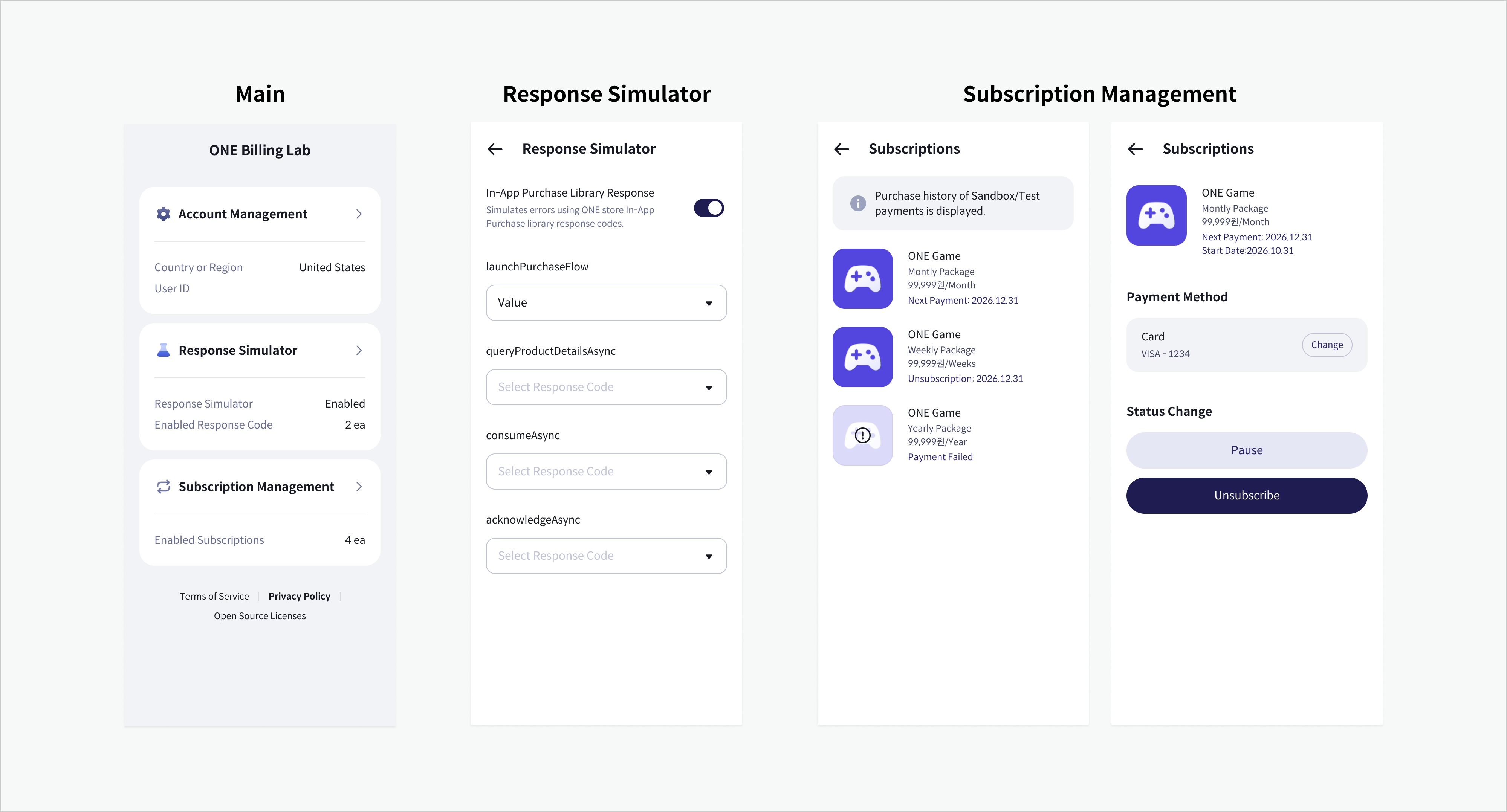
* Payment flow can tested through ONE Billing Lab's response simulator feature, even without integration with the actual ONE store payment system.
## **Feature Overview**
**✅ Integrated Test Environment**
* All ONE store environments, including South Korea, Singapore, Taiwan, and the United States, can be tested using a single ONE Billing Lab app.
* An integrated test environment is provided for developers who previously had difficulty testing due to different package names for each store.
**✅ Response Simulator**
* In-app purchase scenarios can be tested without going through the actual payment process.
* It is used to verify payment response behavior in development and QA environments.
**✅ Testing Various Payment Scenarios**
* Various payment-related features, such as subscription management, use authentication, and biometric authentication, can be tested.
* The subscription management menu is available only when logged in with an account registered in South Korea or the United States.
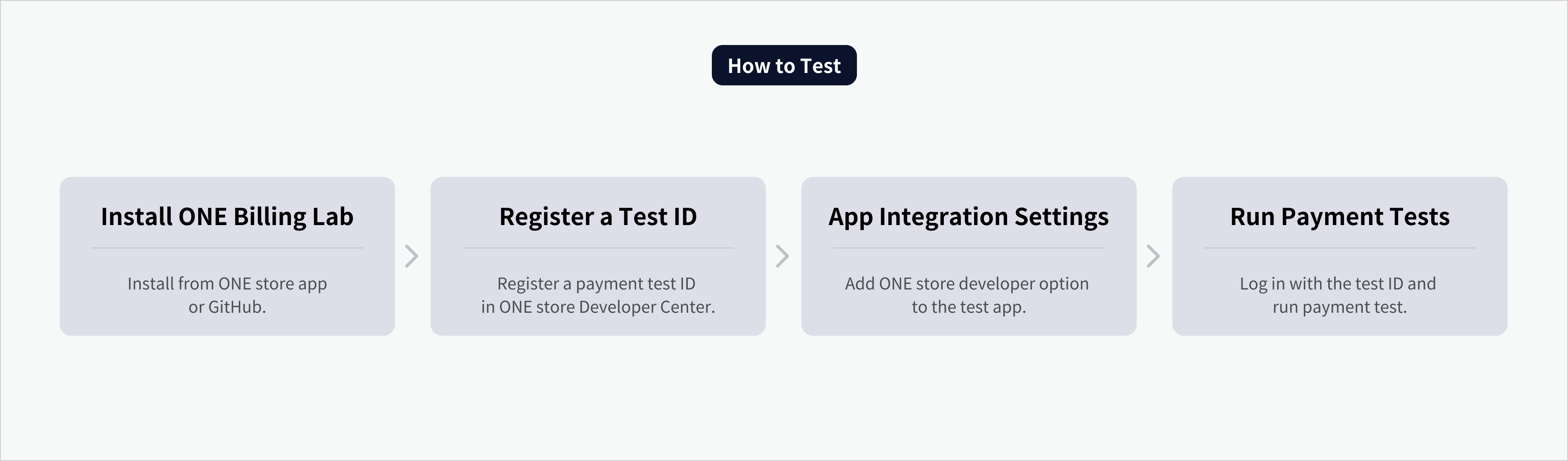
## **How to Test**
### 1. Install ONE Billing Lab
* Download and install ONE Billing Lab from the ONE store app or GitHub.
* [Install from the ONE store app](https://onesto.re/0001002700)
* [Install from GitHub](https://github.com/ONE-store/one_billing_lab)
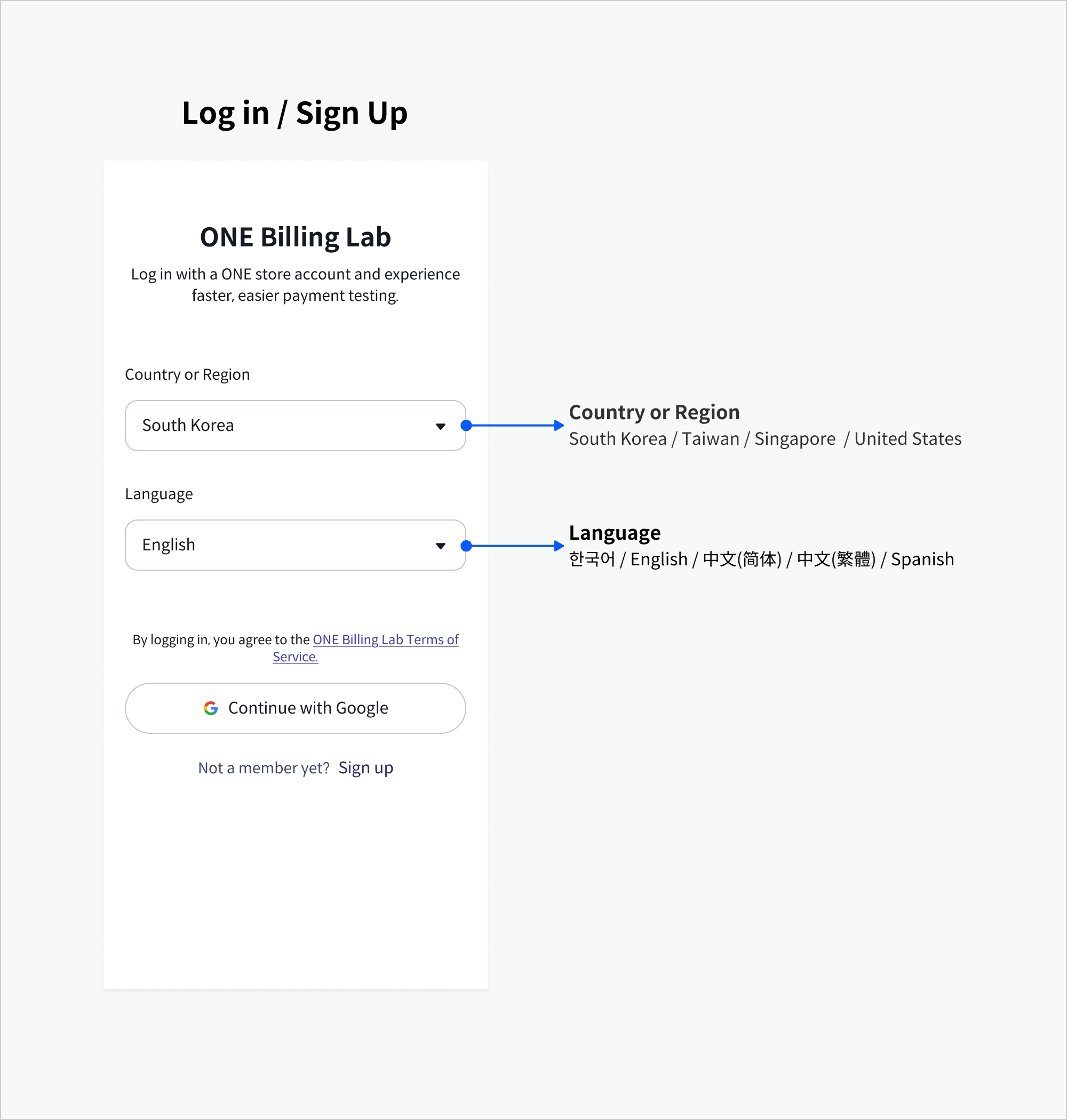
### 2. Create and Log In with a ONE store Account
* After launching ONE Billing Lab, select the country to be tested, then create or log in with a ONE store account.
* A ONE Billing Lab member account is identical to a regular ONE store account.
* If you already have a ONE store account, you can immediately move on to Step 3.
* If you don't have an account, membership registration can be completed easily within ONE Billing Lab.
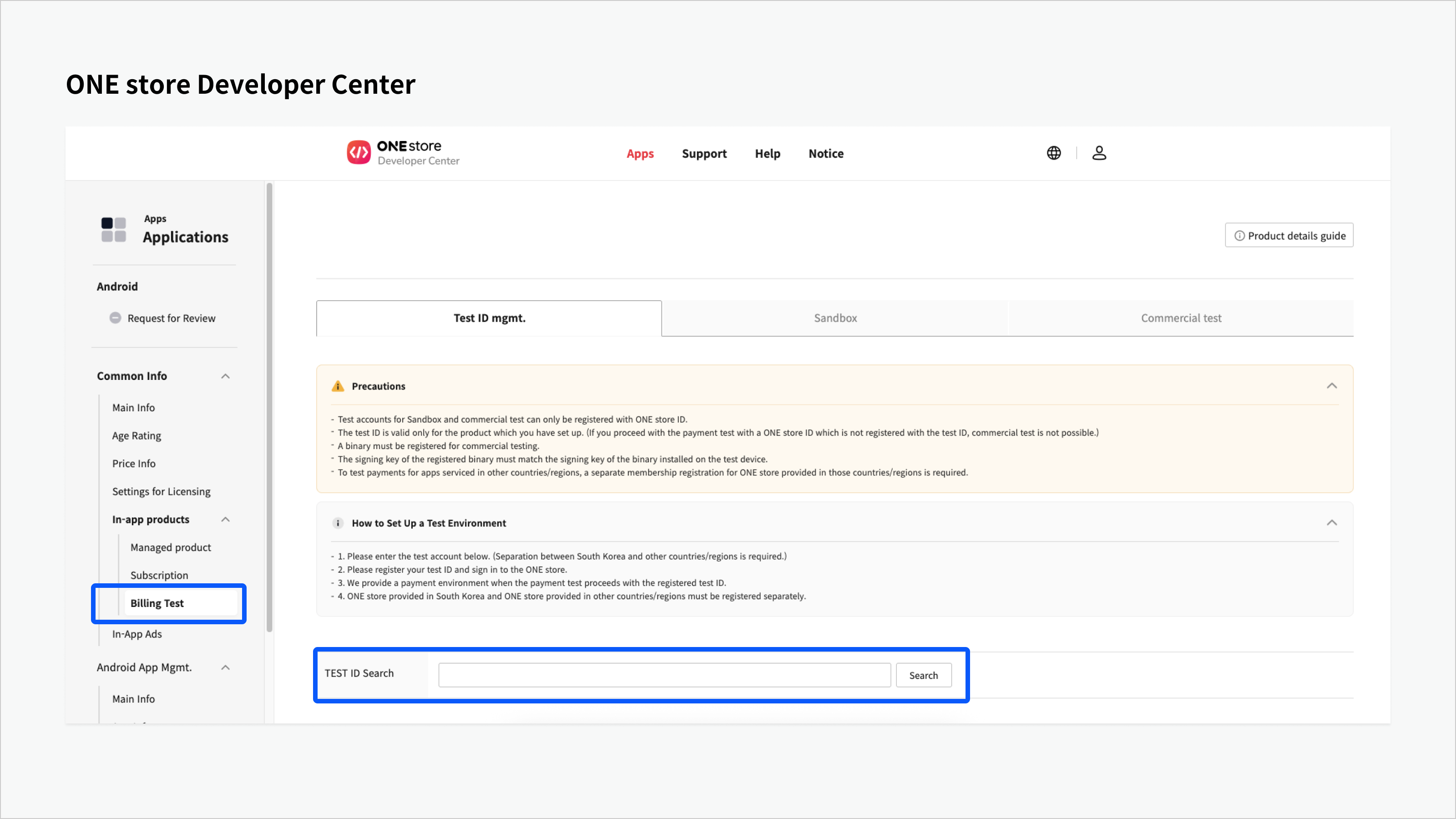
### 3. Register a Test ID
* Register the ONE store account as a payment test ID for the app to be tested in the ONE store Developer Center.
* Payment environment can be selected during registration.
* Sandbox
* Commercial
* Note: [Register test ID](https://onestore-dev.gitbook.io/dev/eng/tools/billing/v21/test?fallback=true#testpurchasesandsecurity.-registertestid) in the ONE store Developer Center
### 4. App Integration Settings
* Configure the `AndroidManifest.xml` file of the developer's app that will be used for integration testing.
* Set the developer option for store selection (the `android:value` of `onestore:dev_option`) to `onestore_03`
* Note: [Setting Developer Options for Store Selection](https://onestore-dev.gitbook.io/dev/eng/tools/billing/v21/sdk#setting-developer-options-for-store-selection)
### 5. Run Payment Tests
* Run the developer’s app and attempt a payment.
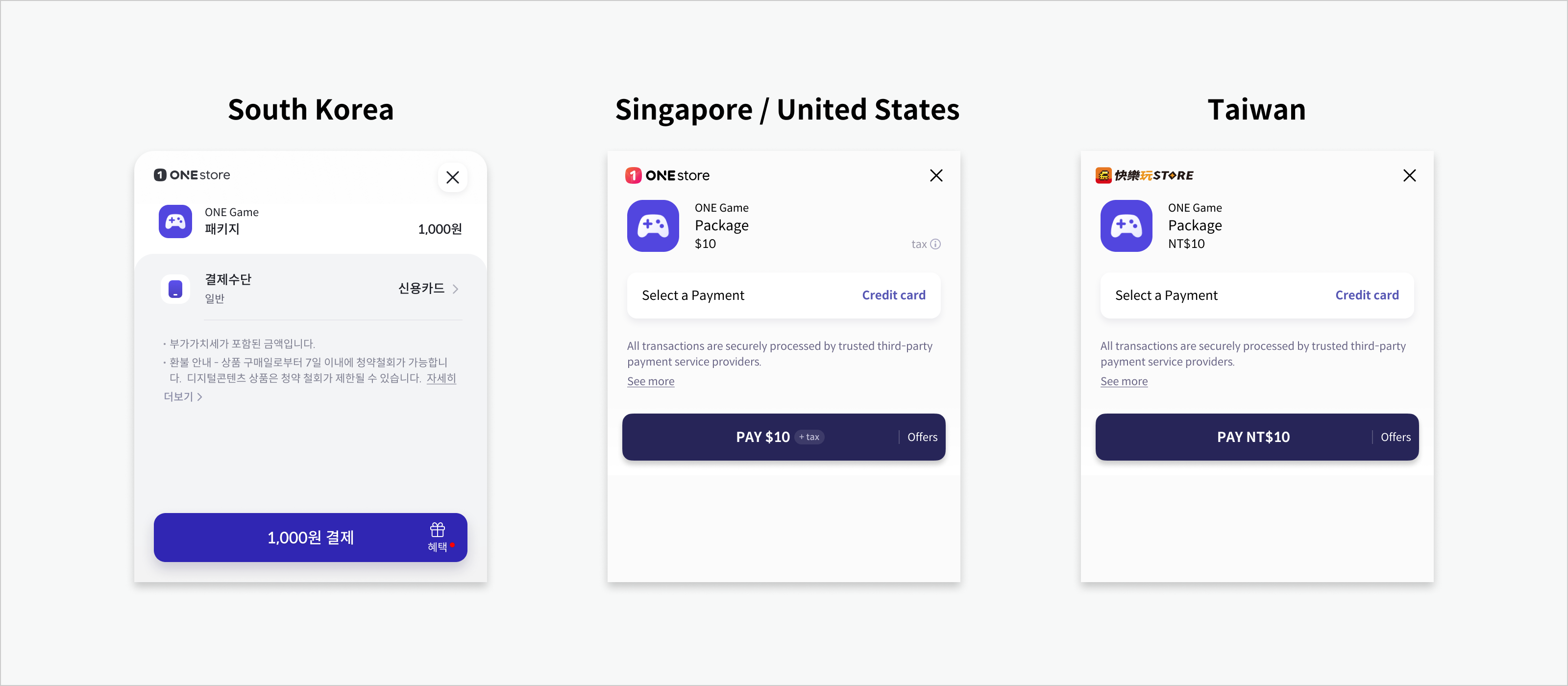
* The payment screen is displayed based on the country of the logged-in ONE store account and the payment environment configured in the Developer Center.
* Example\
: United States member + production payment environment → actual payment screen and payment methods are displayed, and real payments are possible.
{% hint style="danger" %}
To run a commercial test, you must register the Binary in ONE store Developer Center.
{% endhint %}
| Conditions | Commercial test (uploadKey) | Commercial test (store signingKey) | Sandbox test | |
| --------------------- | --------------------------- | ---------------------------------- | ------------ | -------------------------------------------- |
| Binary not registered | ✖ Not allowed | ✖ Not allowed | ✔ Allowed | Only Sandbox available |
| Binary registered | ✔ Allowed | ✔ Allowed | ✔ Allowed | All allowed if signature verification passes |
### 6. Check Test History and Cancel Payments
* Test history can be checked in the ONE store Developer Center.
* Payment cancellations can also be processed directly if necessary.